What Is VLC Media Player?
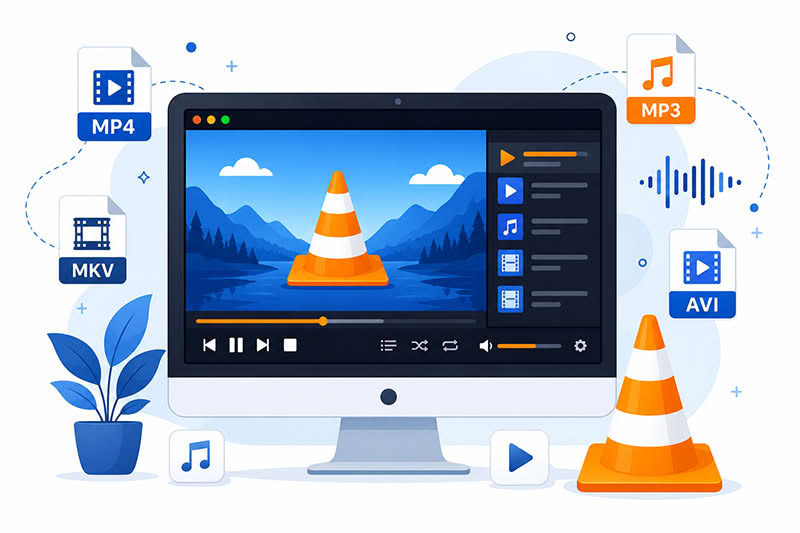
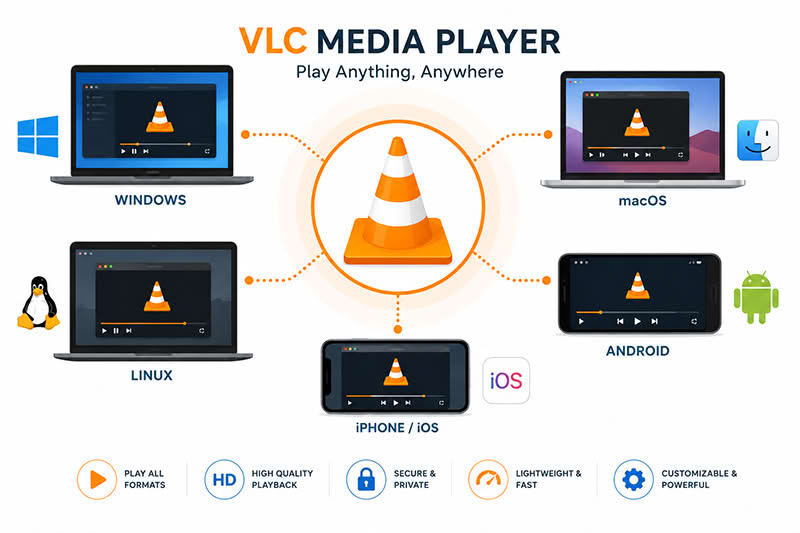
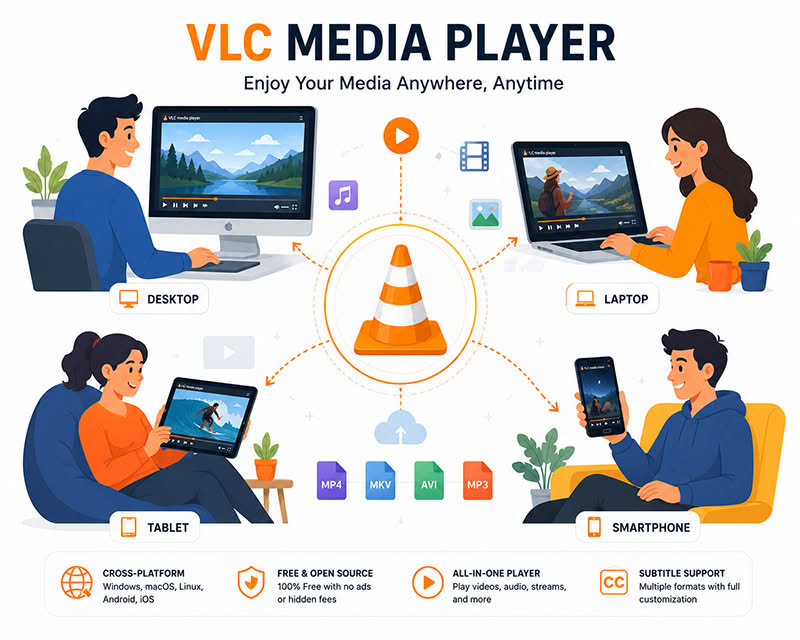
VLC Media Player is a free and open-source multimedia player developed by the VideoLAN project. It is designed to play a wide range of audio and video formats across multiple operating systems, including Windows, macOS, Linux, Android, and iOS.
Unlike many media players, VLC includes built-in codec support, allowing users to open files without installing additional software.
Key Characteristics
- Free to download and use
- Open-source software
- Cross-platform compatibility
- Supports hundreds of media formats
- No advertisements in the desktop application
- Regularly maintained by the VideoLAN community
Why VLC Media Player Is So Popular
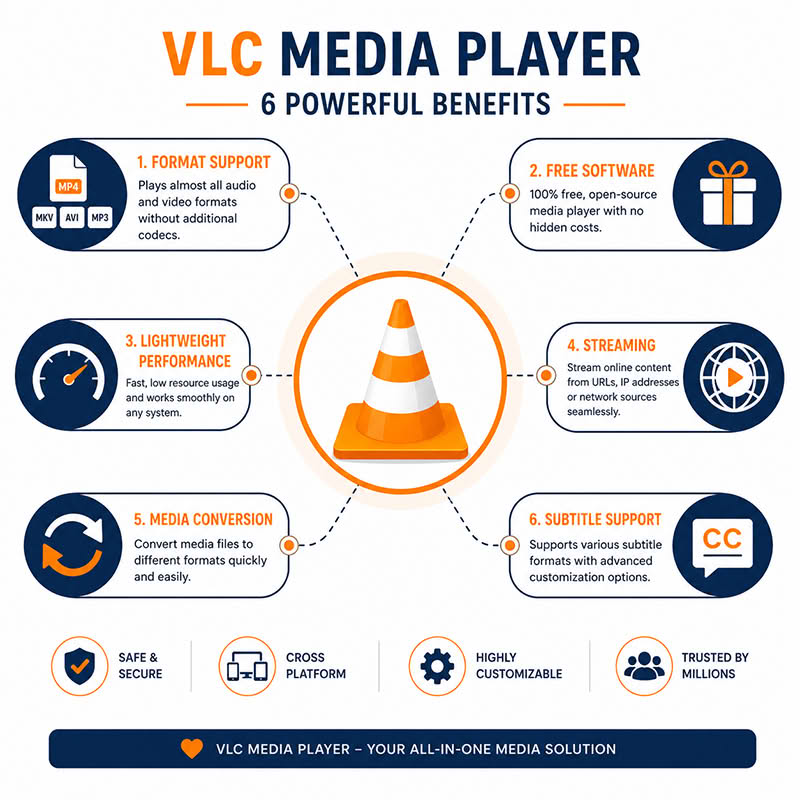
Many media players require separate codec packs to play certain file types. VLC Media Player eliminates this problem by supporting most formats out of the box.
Some of the reasons for its popularity include:
| Feature | Benefit |
| Broad Format Support | Plays most audio and video files |
| Free and Open Source | No licensing fees for personal use |
| Lightweight Design | Runs smoothly on many devices |
| Streaming Support | Plays online streams and network media |
| Conversion Tools | Converts media files into different formats |
| Subtitle Support | Works with multiple subtitle formats |
VLC Media Player Features
1. Extensive Format Compatibility
VLC supports a large variety of formats, including:
- MP4
- AVI
- MKV
- MOV
- WMV
- FLAC
- MP3
- AAC
- OGG
This extensive compatibility makes it a practical choice for users who work with different media formats.
2. Streaming Capabilities
Users can stream content from local networks or online sources. VLC also supports network streams and can function as a simple streaming solution for certain use cases.
3. Subtitle Support
VLC Media Player supports multiple subtitle formats and allows users to:
- Synchronize subtitles
- Adjust subtitle size
- Change subtitle positioning
- Load external subtitle files
4. Media Conversion
The software includes basic media conversion tools that allow users to convert videos and audio files into supported formats.
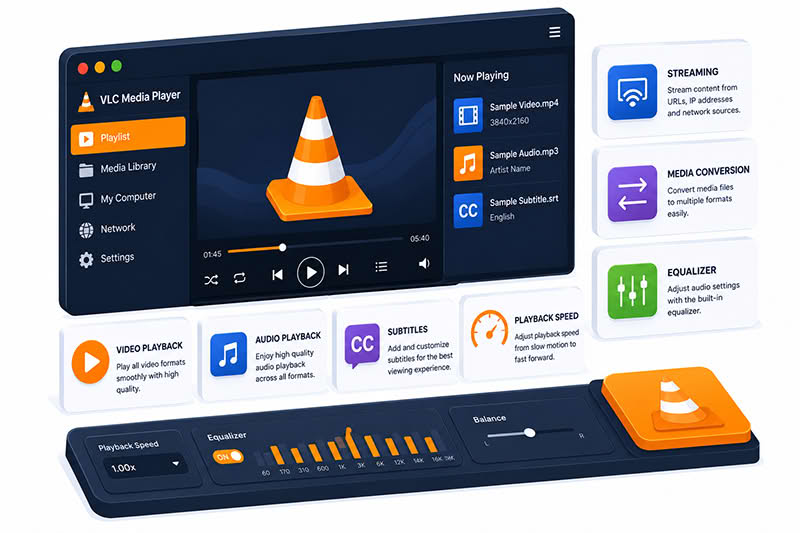
5. Playback Customization
Users can customize:
- Playback speed
- Audio settings
- Video filters
- Equalizer settings
- Keyboard shortcuts
How to Use VLC Media Player
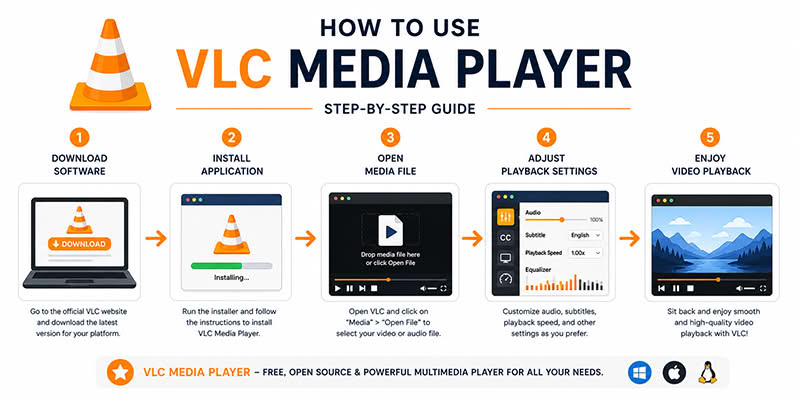
Step 1: Install VLC
Download VLC Media Player from the official VideoLAN website.
Step 2: Open a Media File
Launch VLC and select:
Media → Open File
Choose the audio or video file you want to play.
Step 3: Adjust Playback Settings
Use the playback controls to:
- Pause
- Fast forward
- Rewind
- Change playback speed
- Enable subtitles
Step 4: Explore Advanced Featur
Advanced users can access:
- Streaming options
- Media conversion tools
- Video effects
- Audio enhancements
Advantages of VLC Media Player
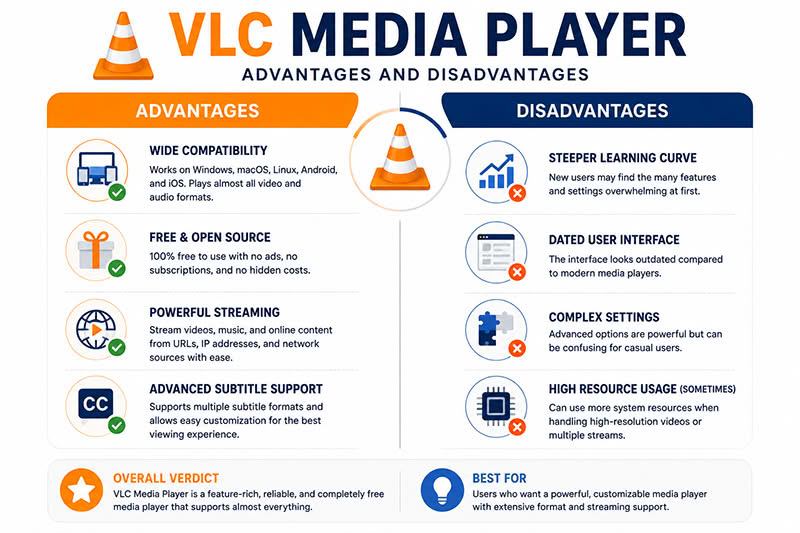
Pros
- Free and open source
- Supports nearly all common media formats
- Available on multiple platforms
- Lightweight and reliable
- Strong subtitle support
- Built-in streaming features
Cons
- Interface may feel dated to some users
- Advanced settings can be overwhelming for beginners
- Media library features are less robust than some dedicated media center applications
Practical Insight
A common mistake is assuming playback issues are caused by damaged files. In practice, many playback problems occur because the media player lacks the necessary codec support. VLC Media Player often resolves these issues immediately because it includes a broad range of codecs by default.
Hypothetical Example:
A student receives lecture recordings in MKV format that won’t play in the default operating system media player. After installing VLC Media Player, the recordings open without additional codec downloads, saving time and reducing technical frustration.
Is VLC Media Player Safe?
VLC Media Player is generally considered safe when downloaded from the official VideoLAN website. As with any software, users should avoid downloading unofficial versions from unknown sources.
FAQ
What is VLC Media Player used for?
VLC Media Player is used to play audio and video files, stream media, manage subtitles, and convert certain media formats.
Is VLC Media Player free?
Yes. VLC Media Player is free and open-source software available for personal and professional use.
Does VLC Media Player support 4K videos?
Yes. VLC can play many high-resolution video formats, including 4K content, depending on system hardware capabilities.
Can VLC Media Player convert video files?
Yes. VLC includes built-in media conversion features that allow users to convert supported audio and video files into different formats.
Is VLC Media Player available on mobile devices?
Yes. VLC is available for Android and iOS in addition to desktop operating systems.
Do I need extra codecs with VLC?
In most cases, no. VLC includes built-in codec support for a wide range of media formats.
Conclusion
VLC Media Player remains one of the most trusted and versatile multimedia players available today. Its broad format compatibility, cross-platform support, subtitle capabilities, and free open-source model make it a practical choice for both casual users and professionals.
If you’re looking for a reliable media player that can handle most audio and video formats without additional codec installations, VLC Media Player is an excellent place to start.
Next Step: Download VLC Media Player from the official VideoLAN website, install it on your device, and test it with your most commonly used media files.